HubSpot
This page explains where to paste the snippet in a site hosted on HubSpot.
Prerequisites
Before you start, you need:
- a web space in the Avacy dashboard, with the banner published;
- the Avacy snippet copied from the dashboard, as described in HTML snippet;
- a HubSpot user with the Website settings permission.
Steps
-
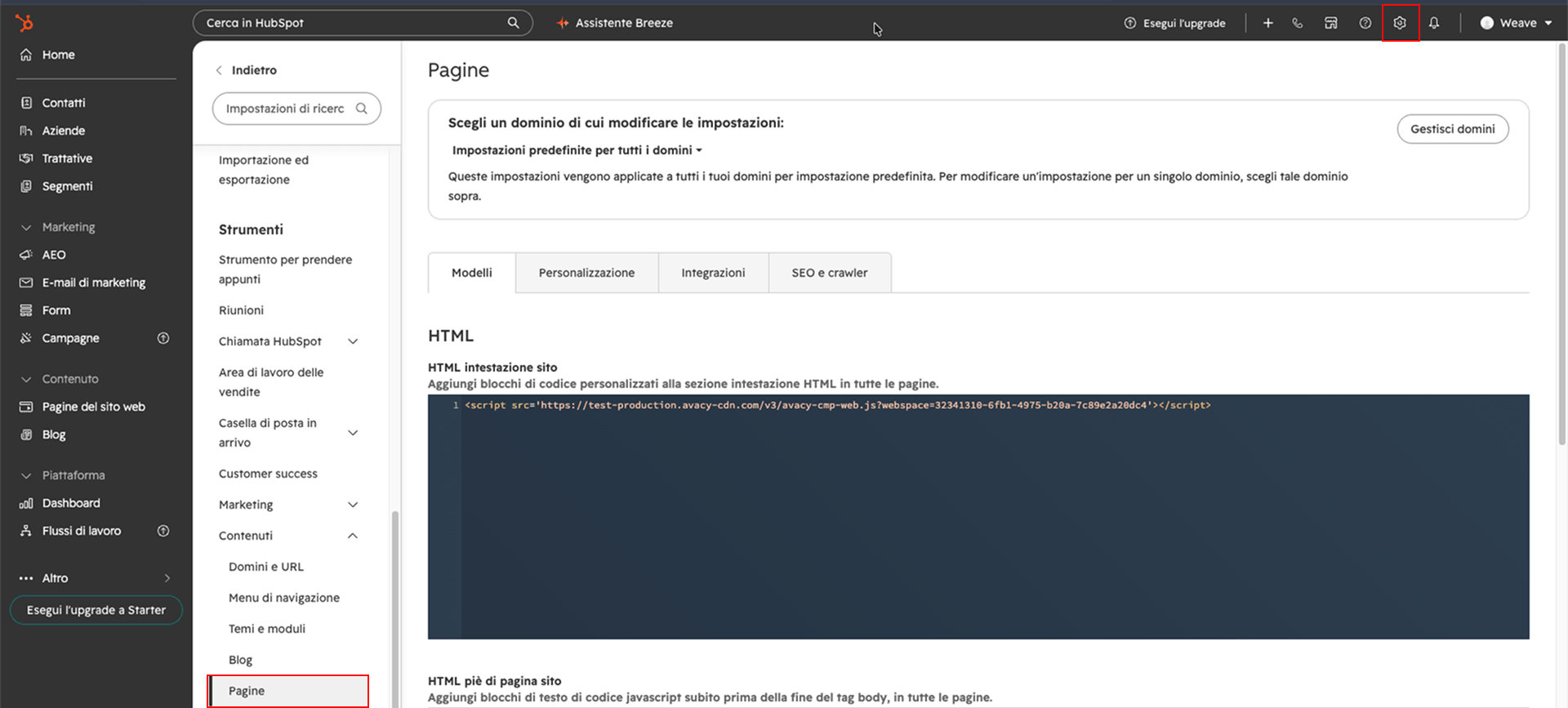
In HubSpot, press the settings icon, the gear in the top navigation bar.
-
In the left menu, press Pages, then open the Templates tab.
-
In the HTML section, paste the snippet in the Site header HTML field.
-
Press Save.
The Site header HTML field applies to all pages hosted by HubSpot, on all domains. You don't need to repeat the steps for each page. For a single domain, first choose that domain in the menu at the top of the page.
Check
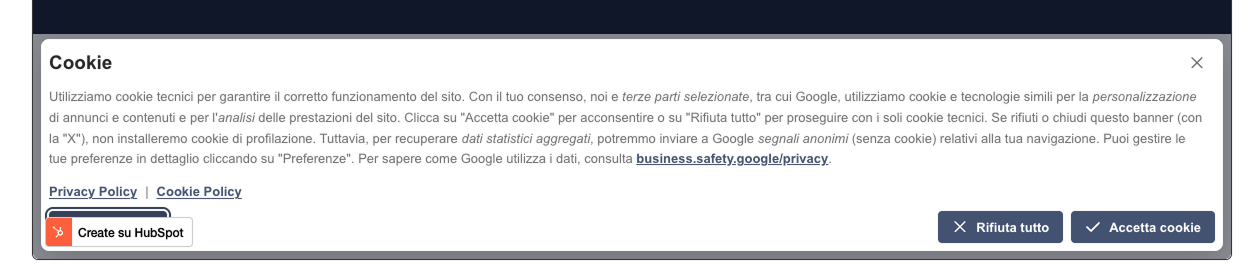
Open the site in a private window. The banner appears on the first visit. The full check is in Check that the banner works.
Common problems
| Symptom | Likely cause | What to do |
|---|---|---|
| The banner does not appear on the domain | The domain has its own header instead of the default one | Paste the snippet in the domain's header, or press Apply default settings |
| The banner is missing on some pages | The pages are not hosted on HubSpot, and the header HTML only applies to hosted pages | Paste the snippet in the code of the site that hosts them |
Sources
- HubSpot, Use code snippets with HubSpot content (in Italian, updated 11/02/2026)
Last updated: 09/11/2026.