Magento
This page explains where to paste the snippet in Magento, now called Adobe Commerce.
The menu labels are the English ones of the Magento admin, as in Adobe's documentation.
Prerequisites
Before you start, you need:
- a web space in the Avacy dashboard, with the banner published;
- the Avacy snippet copied from the dashboard, as described in HTML snippet;
- an admin user with permission to edit the design configuration.
Steps
-
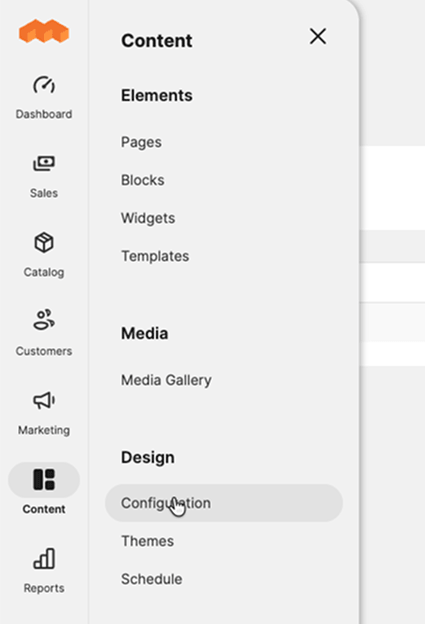
In the admin side menu, open Content. In the Design section, choose Configuration.
-
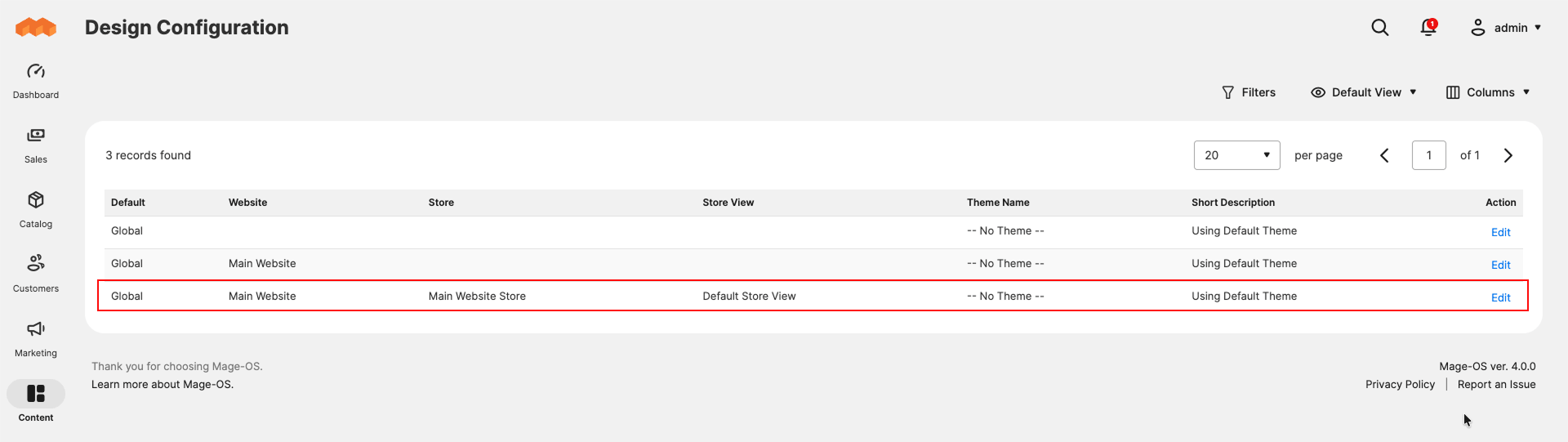
In the list, find the row of the store view to edit and press Edit in the Action column. A store view is the version of the store for one language. If you have only one, it is the Default Store View row.
-
Under Other Settings, open the HTML Head section. In the Scripts and Style Sheets field, add a new line after the existing text and paste the snippet. Keep the existing content. Magento inserts the field's content right before the closing
</head>.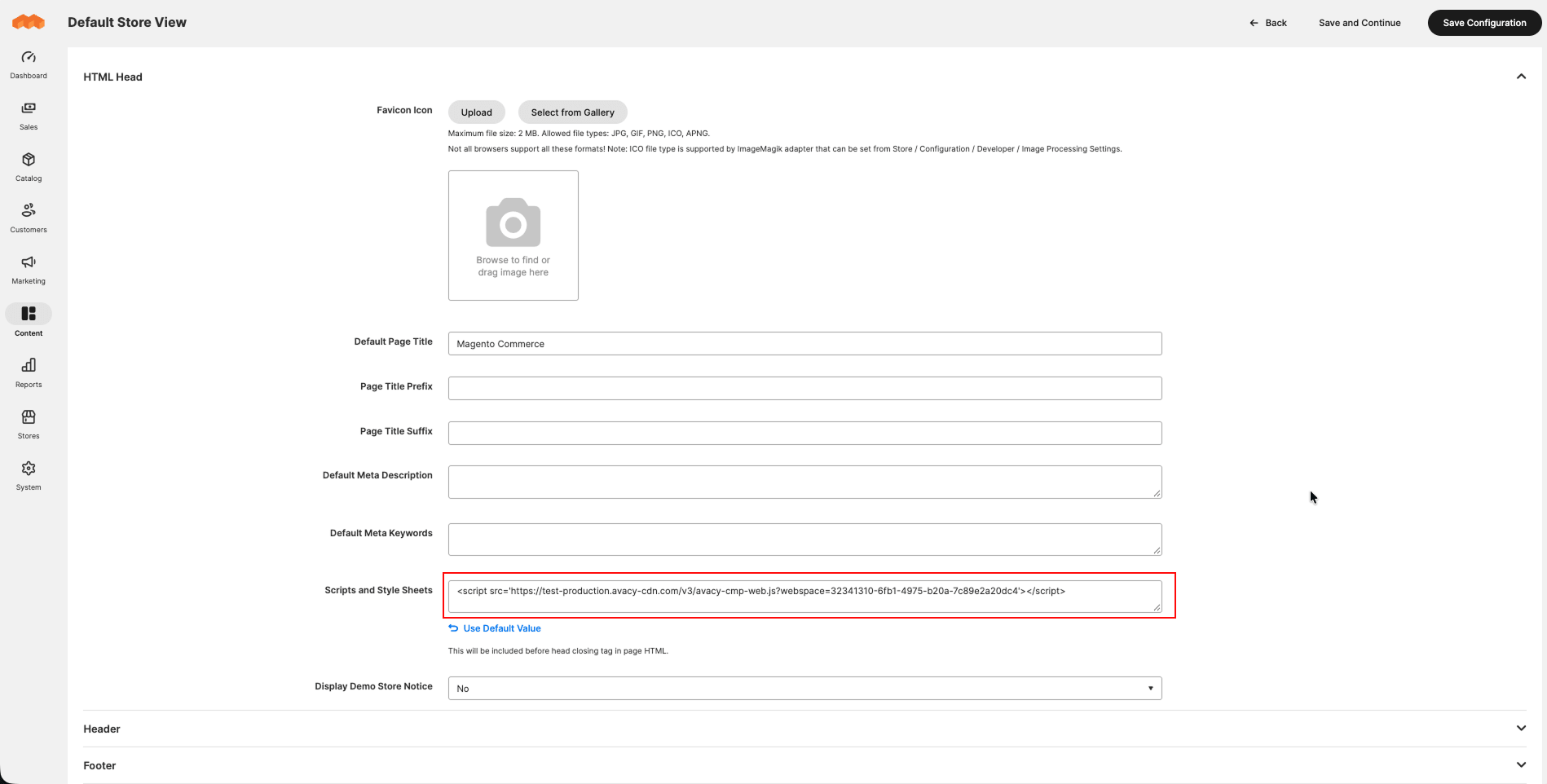
-
Press Save Configuration.
-
If the banner does not appear, in the side menu open System, then Tools, then Cache Management, and press Flush Magento Cache.
-
If the store has more than one store view, repeat steps 2 to 4 for each store view.
Check
Open the store in a private window. The banner appears on the first visit. The full check is in Check that the banner works.

Common problems
| Symptom | Likely cause | What to do |
|---|---|---|
| The banner does not appear after saving | The Magento cache may still serve the page without the snippet | Flush the cache as in step 5 and reload the page |
| The banner appears only in some store views | The configuration was saved for one store view only | Repeat steps 2 to 4 for the other store views |
| The banner does not appear on the checkout pages | Since version 2.4.7, the Content Security Policy blocks scripts not on the allowlist on those pages | Follow the "Content Security Policy" section below |
Content Security Policy
Adobe states that scripts in the Scripts and Style Sheets field must be allowed by the Content Security Policy (CSP) to run in the checkout. Since version 2.4.7, the payment pages are in restrictive mode; the other pages are in report-only mode and do not block. The CSP is configured in code, not from the admin.
The store developer adds the snippet host (https://<team>.avacy-cdn.com) to script-src in a module's etc/csp_whitelist.xml file: a <policy id="script-src"> with a <value type="host">. They then add the other addresses from the table in HTML snippet.
Sources
- Adobe, Page setup (Design configuration)
- Adobe, Cache management
- Adobe, Content Security Policy
- Adobe Developer, Content security policies
- Adobe, Storefront checkout page in CSP restricted mode
Last updated: 09/11/2026.