Shopify
This page explains where to paste the snippet in a Shopify store's theme.
The Shopify labels are those of the admin in English. In another language the names change.
Prerequisites
Before you start, you need:
- a web space in the Avacy dashboard, with the banner published;
- the Avacy snippet copied from the dashboard, as described in HTML snippet;
- a Shopify account with permission to edit the theme code.
Before editing the code, you can duplicate the theme from the three-dots menu on the theme card. The copy stays among the unpublished themes and serves as a backup.
Steps
-
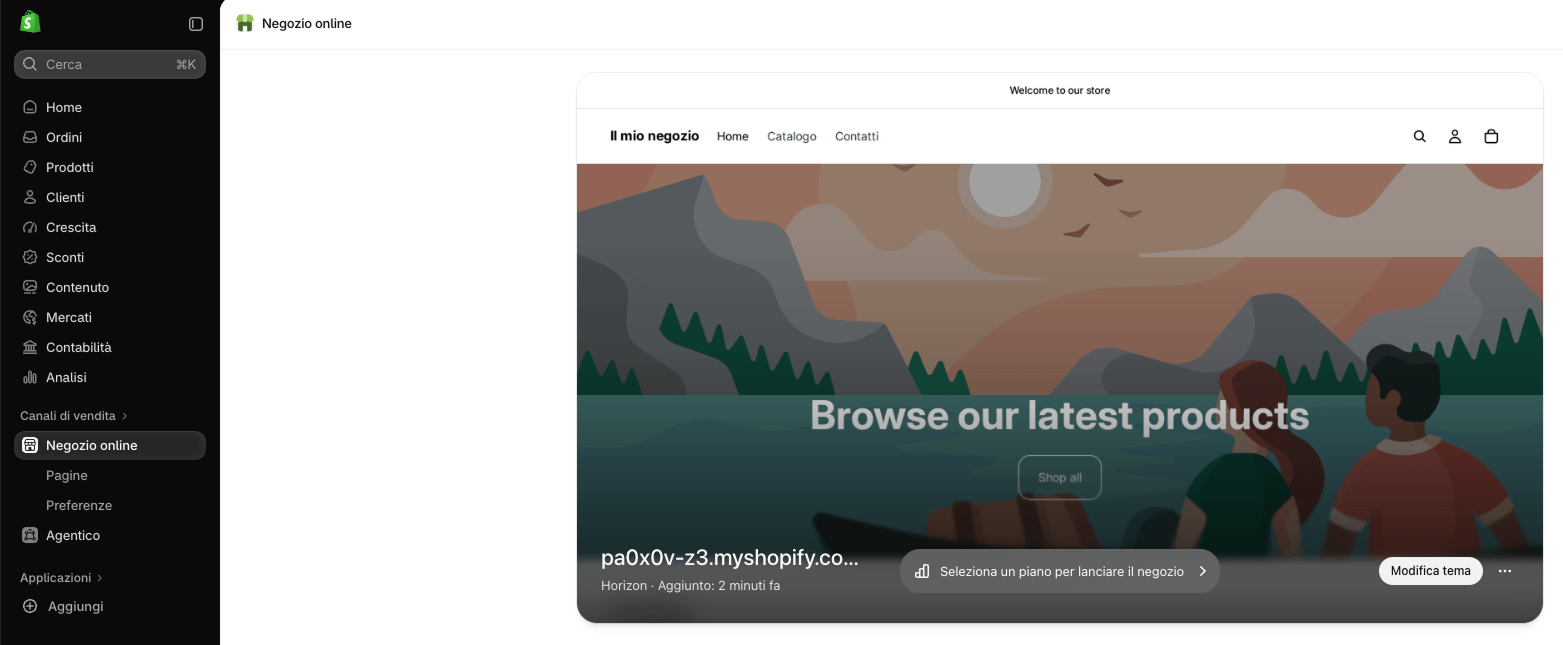
In the Shopify admin, open Online Store from the left menu. Shopify shows the theme you use.
-
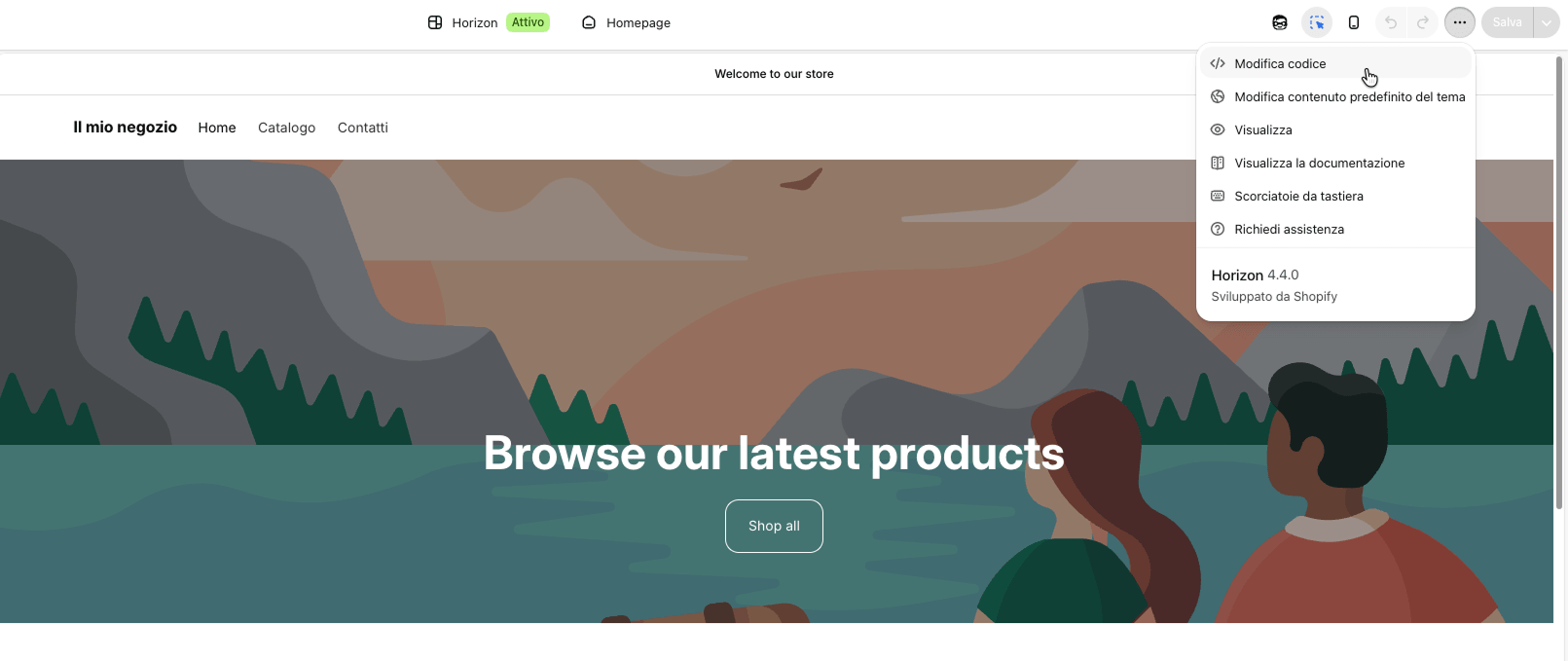
Press Edit theme. In the theme editor, press the button with the three horizontal dots, top right, and choose Edit code.
-
In the
layoutfolder, open thetheme.liquidfile, the theme's base layout that every page goes through. You can also find it by searching for<head>in the code. -
Paste the snippet at the top of the
<head>, before all other scripts and before{{ content_for_header }}.<head><script src='https://acme.avacy-cdn.com/v3/avacy-cmp-web.js?webspace=123e4567-e89b-12d3-a456-426614174000'></script>...{{ content_for_header }}</head>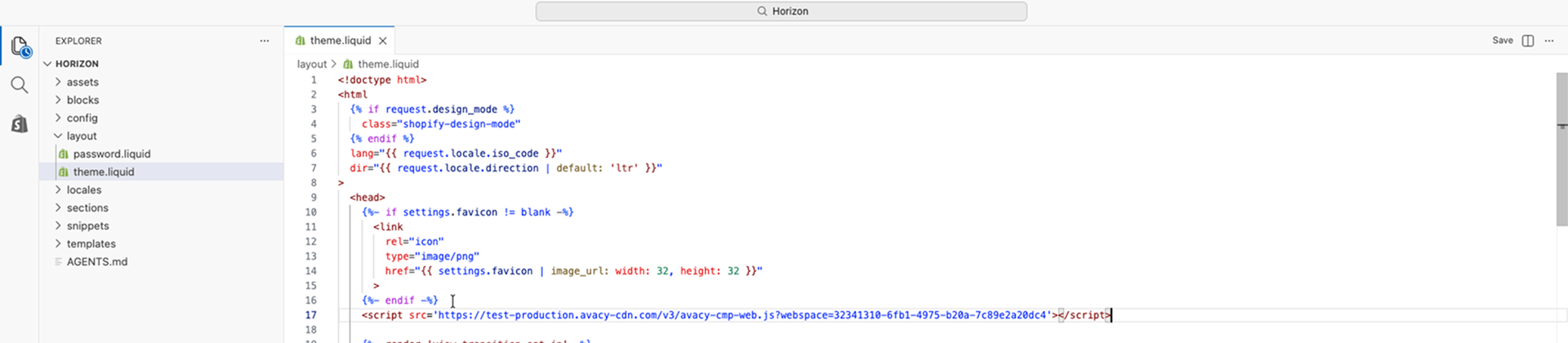
-
Press Save, top right in the code editor.
Check
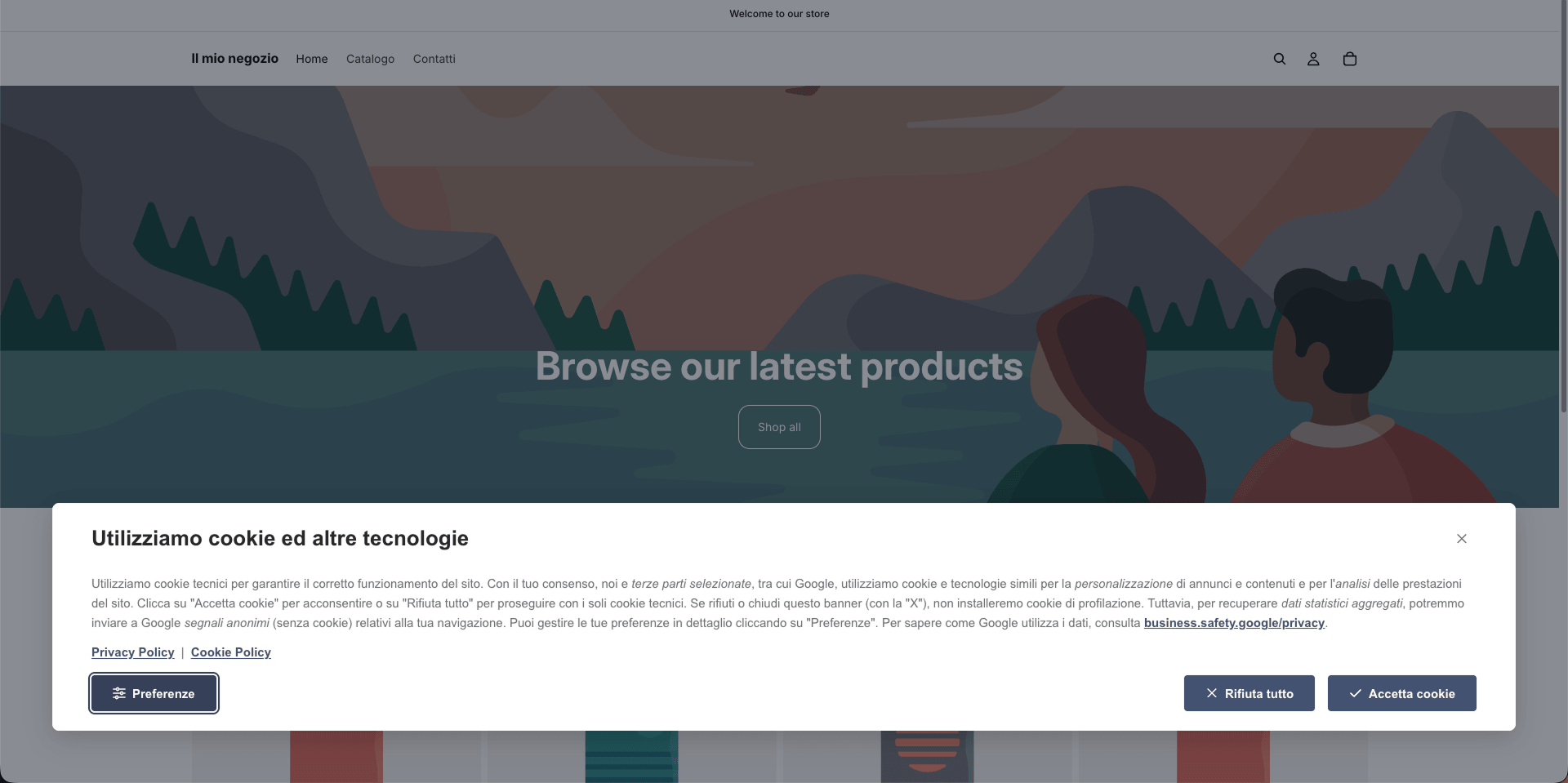
Open the store in a private window. The banner appears on the first visit. The full check is in Check that the banner works.
What happens when you change theme
The snippet lives in the theme.liquid of the theme you pasted it into. Each theme has its own theme.liquid.
When you publish a new theme, the previous theme is no longer published and the banner disappears, because the new theme does not contain the snippet. Repeat steps 2 to 5 on the new theme.
Common problems
| Symptom | Likely cause | What to do |
|---|---|---|
| The banner does not appear after saving | The snippet is in the duplicated theme, not in the published theme | Paste the snippet in the published theme |
| The banner does not appear after a theme change | The new theme does not contain the snippet | Paste the snippet in the new theme's theme.liquid |
The console shows an [avacy-loader] message | The snippet is incomplete or the web space code is wrong | Read Check that the banner works |
Shopify offers a Customer Privacy API for consent banners. This page does not use it: Avacy does not currently have an integration with that API. For details, read the Shopify documentation listed in the sources.
Sources
- Shopify, Editing theme code
- Shopify, Duplicating themes
- Shopify, Publishing a theme
- Shopify, Theme layouts
- Shopify, Customer Privacy API
Last updated: 09/11/2026.